Table of Contents
The order's Artwork tab is displayed when an order is saved and the Artwork Approval option is enabled in Control. The tab is the primary place where employees manage the artwork process.
The purpose of the order Artwork tab is to:
- Show which line items belong to a particular artwork group
- Allow the employees to manage the artwork groups and files
- Allow comments on artwork.
- Allow the artwork status to be updated.
When artwork is enabled, the Artwork tab appears after the Activities tab for existing orders. Similar to the Documents tab, the Artwork tab does NOT show up until the order/estimate is saved. The Artwork tab may be turned on or off for individuals using a checkbox on the Advanced tab but is shown by default.
The Artwork tab is divided into panels and sub-panels:
- Order level artwork information
- Artwork Group information
- Artwork item information
- Artwork proof and comments
Let's look at each of these individually.
Order Level Artwork Information
Here's an example of what the new Artwork tab looks like on an order/estimate:

Options
- Designer. A drop-down list where the user can select from any active employee in the company. If the current designer is not an active employee, she or he should still show up in the list. This is not a required field and can be cleared.
- Approver. A drop-down list where the user can select from any active customer contact for the order’s customer on record. This is not a required field, but once set it can be changed but not cleared.
Actions
The following actions are available for the Order-Level Artwork Information section:
- Add an Artwork Group. This creates a new artwork group. The new group will not be associated with any line items initially and will be inactive until a line item association is made.
- Send Reminder Emails. This action triggers a reminder email for each artwork group that is “Pending Approval” (to Named Customers).
- Advance All Artwork to Pending Approval. This changes the status for all artwork groups that are “In Design” to “Pending Approval” and sends notifications to employees and customers.
- Advance All Artwork to Approved Status. This changes the status for all artwork groups that are In Design or Pending Approval to “Approved” and sends notifications to employees.
- Mark All Artwork as Produced. This changes the status for all artwork groups that are not Produced or Rejected to Produced.
- Artwork Approval Due. This date-time field tracks when the artwork approval is due back from the customer. This date must be set manually. When set, all of an order’s artwork groups automatically use this value, though they may be overriddenz
Artwork Group Information
Group information is shown for each Artwork Group. The group information may be collapsed or may show the proof files beneath.

Options
For each Artwork Group, the following information is displayed:
- Group. The group name (A, B, AA, etc.) is displayed. Next to the group name is a folder icon which will open up a Windows explorer browser for the Group’s artwork folder.
- Description. The description for the Group. This may be edited on this screen, but is not a required field.
- Status. The status of the Artwork Group.
- Artwork Approval Due. This date-time field tracks when the artwork approval is due back from the customer. By default, this date is taken from the order’s artwork approval date, though it may be overridden for each artwork group on this screen.
- Line Items. The list of line items (1, 2, 3a, etc.) that use this artwork group. The drop-down list shows all line items with their number and product code.
- Proof Files. The number of proof files is displayed.
Actions
The actions that are available for the artwork are dependent upon the following factors:
- The current status of the artwork.
The status of the order.
Artwork Item Information
Artwork Item information is shown for each Artwork Group. If there are different proof versions for an artwork item, a scroll option allows the user to scroll through each version.

Options
For each Artwork Item, the following information is displayed:
- Proof Index. This is the index of the proof. It is not editable.
- Description. The description of the proof file. This defaults to the file name (sans extension) but may be edited by the user.
- File Name. The original file name (pre-versioning).
- Comments. The first few lines of comments are displayed here. Comments are truncated with ellipses
Proof Image Information
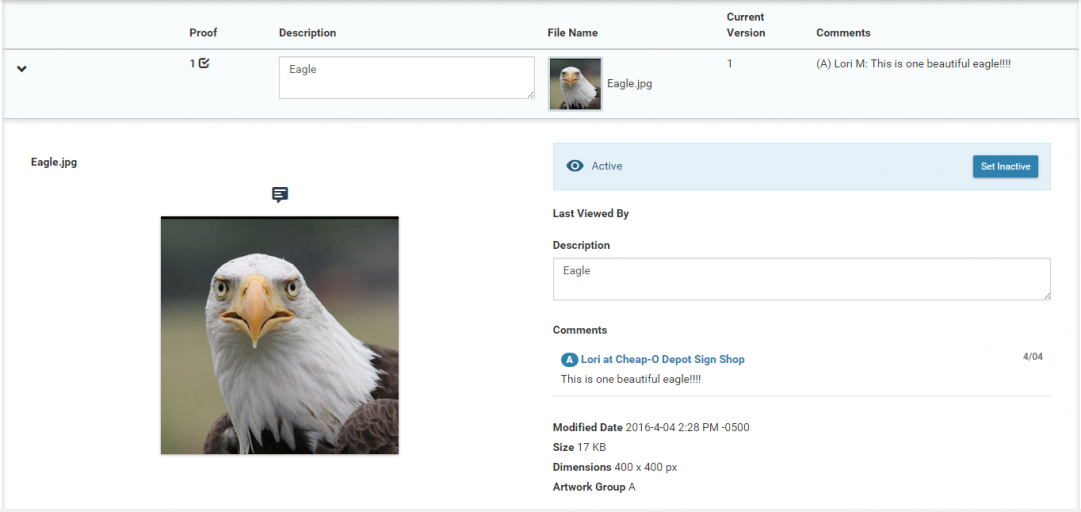
The Proof File Detail screen is a detail screen that shows the currently selected proof file and version indicated on the Artwork Item information section.
Options
The following information is displayed on the Proof File Detail panel:
- Image. The medium-resolution (or source) image should be displayed on this panel.
- Comment Toolbar. The comment toolbar is displayed to allow the user to add comments. The functionality of these comments is the same as is available in the Customer CloudApp.
- Comments. Comments are displayed most recent first, in the same format used in the Customer CloudApp. The only new functionality is that the most recent comment can be deleted by the employee which put it in as long as the Artwork Group has not been Approved.
- Last Viewed Info Panel. This information panel shows the date and time this proof file version was last viewed by the Approver. The number of views is also shown.
- More Info Panel. This information panel (which may be collapsed by default) shows information about the file itself, including added date, size (in MB), dimensions (pixel h x w), the date the file was deleted (if appropriate)
Actions
The following actions are available on the Proof Image Detail panel:
- Add Comment.
- Set image as Inactive.
- Set image as Active.
Source
Contributor: Cyrious Software
Date: 08/02/2016
Version: Control 05.7