Company

- Show Company flags when editing, cloning, converting, or changing status Orders or Estimates. If this option is selected, company flags will be displayed when editing, cloning, converting, or changing status orders or estimates. If this option is not selected, the flags will not be shown.
- Allow duplicate Company names in Company entry. If this option is selected, you will be able to enter duplicate company names in the company entry. If this option is not selected, no duplicate names will be allowed.
- Require Company industry. When this option is selected, you will be required to enter a company industry. If this option is not selected, no company industry will be required.
- Require Company origin. If this option is selected, you will be required to enter a company origin. If this option is not selected, no company origin will be required.
- Require Phone Numbers. When this option is selected, phone numbers will be required. If this option is not selected, no phone numbers will be required.
- Prompt for reasons when prospects UDFs are edited. If this option is selected, you will be prompted for reasons when editing prospects UDFs. If this option is not selected, you will not be prompted.
- Prompt for reason when Client UDFs are edited. When this option is selected, you will be prompted for reasons when editing client's UDFs. If this option is not selected, you will not be prompted.
- Prompt for reason when prospects are edited. When this option is selected, you will be prompted for reasons when editing a prospect. If this option is not selected, you will not be prompted.
- Prompt for reasons when clients are edited. When this option is selected, you will be prompted for reasons when editing a client. If this option is not selected, you will not be prompted.
- Check Lookup Tax By Zip Code by default. When this option is selected, the lookup tax will be checked by zip code by default. If this option is not selected, the lookup tax will not be checked by zip code by default.
- Tax Class Blank by Default. If this option is selected, the tax class field will be left blank by default. If this option is not selected, the tax class will not be blank.
- Show Salespeople on Company and Order Entry screens. If this option is selected, the salespeople will show on the company and order entry screens. If this option is not selected, they will not be shown.
- Default Salesperson to:
 . If this option is selected, the salesperson you select will become your salesperson by default. If this option is not selected, you will have no default salesperson.
 - Allow multiple salespeople per company:
 . When this option is selected, multiple salespeople per company will be allowed. In the scroll box, you can choose the number of salespeople you want allowed. If this option is not selected, only one salesperson will be allowed per company.
Tax Exemption Options:
- Default tax exemption to all states. When this option is selected, all states will be marked tax exempt by default.
- Require tax exempt status to be manually selected. When this option is selected, you will be required to select the tax exemption status manually.
Address Options Panel:
- Show county field in address entry. If this option is selected, the county field will appear in the address entry. If this option is not selected, the county field will not appear in the address entry.
- Show country field in address entry. If this option is selected, the country field will appear in the address entry. If this option is not selected, the country field will not appear in the address entry.
- Limit states to list. If this option is selected, you will be able to select a state from a created list. If this option is not selected, you will not be able to select a state from a list.
- Allow Addresses to use Tax Class. When this option is selected, addresses will be allowed to use tax classes. If this option is not selected, addresses will not be allowed to use tax classes.
- Use Shipping Company's Tax Class when Shipping Full Contact's Tax Class is not set. When this option is selected, the shipping company's tax class will be used instead of the shipping full contact's tax class. If this option is not selected, the shipping full contact's tax class will be used.
- Require postal code. When this option is selected, a postal code will be required for a company. If this option is not selected, no postal code will be required.
- Default city to store's city for the new address. If this option is selected, the city in a new address will be the same as the store's city by default. If this option is not selected, you will have to manually enter a city for the new address.
- Allow multiple addresses. When this option is selected, you will be allowed to have multiple addresses for an individual company. If this option is not selected, you will only be able to have one address per company.
- Automatically create additional address for new companies.
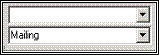 . If this option is selected, the user will be prompted to enter additional addresses for new companies. If this option is not selected, only the standard billing and shipping addresses will be created for a company.
Service Contract:
- Show flag if customer service contract is expired. If this option is selected, a flag will show when a customer's service contract is expired. If this option is not selected, no flag will show for expired customer service contracts.
- Show flag if customer does not have a service contract. If this option is selected, a flag will show if a customer does not have a service contract. If this option is not selected, no flag will show for customers that do not have a service contract.
Reset Values: If this button is clicked, it will reset all your current selections to your default selections.
Contact Options

- Show Middle Name. If this option is selected, the middle name will appear. If this option is not selected, no middle name will show.
- Hide shipping address. If this option is selected, the shipping address will be hidden. If this option is not selected, the shipping address will show.
- Email address required. If this option is selected, an email address will be required to save and close a contact. If this option is not selected, no email address will be required.
- Require check number when posting payment. When this option is selected, a check number will be required when posting a payment. If this option is not selected, you will be able to post a payment with no check number.
- Show contact Image. If this option is selected, the contact image will show. If this option is not selected, no contact image will appear.
- Include year in birthday. If this option is selected, the year will be included in the birthday of the contact. If this option is not selected, there will not be a year of birth for the contact.
- Default Last Name to the Company Name. If this option is selected, the last name will be the same as the company name by default. If this option is not selected, the last name will need to be manually entered.
Full Contact Singular Name: [ text field ]. Text entered in this field will be used to refer to one full contact person in a company.
Full Contact Plural Name: [ text field ]. Text entered in this field will be used to refer to more than one full contact person in a company.
Limited Contact Singular Name: [ text field ]. Text used in this field will be used to refer to one limited contact person in a company.
Limited Contact Plural Name: [ text field ]. Text entered in this field will be used to refer to more than one limited contact person in a company.
When storing credit card information for a contact:
- Check that Credit Card Numbers are valid. (Does not authorize) When this option is selected, credit card numbers will be checked to make sure they are valid. When the number is checked, the payment WILL NOT be authorized.
- Require a valid expiration date. When this option is selected, a credit card will have to have a valid expiration date in order for the credit card information to be stored. If this option is not selected, no valid expiration date will be required.
- Require a name on card. When this option is selected, a credit card must have a name on it in order for the credit card information to be stored. If this option is not selected, no valid expiration date will be required.
Address Options:
- Automatically create additional addresses for new contacts. When this option is selected, the user will be prompted to enter additional addresses for new contacts. If this option is not selected, only the standard billing and shipping addresses will be created for a contact.
- Credit Card billing:
 . If this option is selected, the credit card billing address will be the same address as the address selected in the drop-down menu. For example, Home is selected so the credit card address will be the same as the contact's home address.
Reset Values: If this button is clicked, it will reset all your current selections to your default selections.
Vendor Options

Default Shipping Method:  . This option allows you to select a default shipping method for your vendors. You can choose a method of your choice, or choose 'none' to have no default shipping method.
Company Notes

- This option allows you to create templates for company notes. In this screenshot, the note template is named “100% Deposit”, which is shown in the first text entry field.
- Underneath the name of the template, you are able to create the template. This template reads “Take a 100% deposit from this customer!”
- Show Inactive. If this option is selected, all company notes will appear in this list, whether they are active or inactive. If this option is not selected, only the active company notes will be shown.
Phone Number Types

System Phone Number Type:
- Phone Number Type Name: [ text entry ]. This text entry field will display the name of the phone number type that you selected from the list to the left.
- Active. If this option is selected, the currently displayed phone number type will be considered an active phone number type. If this option is not selected, the current type will be considered inactive.
- Description. In this text box, you are able to type a description of the current phone number type.
- Show inactive. If this option is selected, all phone number types will be shown in the list, whether they are active or inactive.
Shipping Methods

- Shipping Method Name: [ text entry ]. This text entry field will display the name of the shipping method that you selected from the list to the left.
- Active. If this option is selected, the currently displayed shipping method will be considered an active shipping method. If this option is not selected, the current method will be considered inactive.
- Description. In this text box, you are able to type a description of the current phone number type.
- Show Inactive. If this option is selected all shipping methods will be shown in the list, whether they are active or inactive.
Titles

- Title Name: [ text entry ]. This text entry field will display the title name that you selected from the list to the left.
- Active Title. If this option is selected, the currently displayed title will be considered an active title. If this option is not selected, the current title will be considered inactive.
- Show inactive. If this option is selected, all titles will be shown in the list, whether they are active or inactive.
Next Company Number

Next Company Number: [ # ]. This is where the next company number will appear. You can also click the 'set next company number' button and set your own number for the company.