Table of Contents
Overview
You'll see newly designed payment entry interfaces in Control 6.0. Although they look different from the old payment windows, they function very much the same with a few exceptions. Here's a list with some of those exceptions:
- You'll need to enter an Amount to Pay before choosing a Payment Type.
- You won't see separate payment options for each credit card type (Visa, MC, AmEx, etc…) if you are processing credit cards through Control. FreedomPay will determine the card type based on the card number and assign it the correct type when processed.
- All credit cards for the specified company will display as a separate Payment Type. This makes viewing which credit cards are available for the company much easier.
Let's look at some specific examples.
Posting Payments for One Order
The Payment Type portion of the Quick Payment screen changes based on whether or not credit cards are processed in Control. Here's a list of the things that are the same for all customers regardless of whether or not credit cards are being processed internally.
Amount to Pay:
- This field will default to $0 if no deposit percentage is entered in Setup > System Setup.
- This field will default to the amount equal to the required deposit percentage (Setup > System Setup> Next Numbers and Invoice Defaults) for the order when the order is in WIP.
- This field will default to the Balance Due on the order when the order is in Sale or when a partial payment has already been applied to the order.
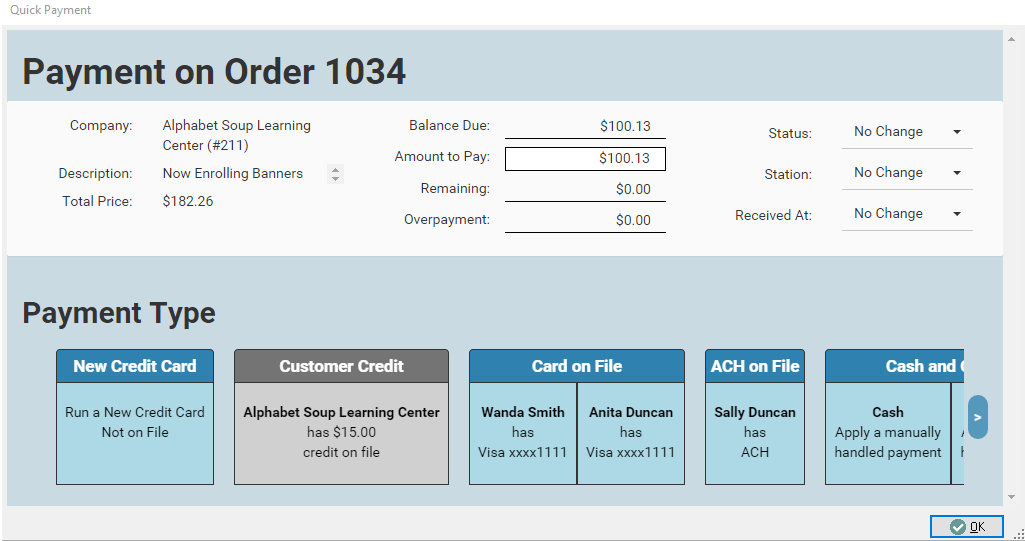
- If this field is left blank, no Payment Type can be selected (grey = inactive). When an Amount to Pay has been entered, you'll notice the Payment Types are blue and active.
- If the amount entered in this field is higher than the customer's available credit, the Customer Credit Payment Type will be grey.
Remaining:
- If you enter an Amount to Pay that's less than the Balance Due, the difference will automatically move into Remaining.
Overpayment:
- If you enter an Amount to Pay that's greater than the Balance Due, the excess will automatically move into Overpayment. This will result in a credit being added to the customer's record.
If you are Processing Credit Cards in Control
This is what the Quick Payment interface will look like for a user that is processing payments in Control.


If you are NOT Processing Credit Cards in Control
The Quick Payment interface looks a bit different for customers that aren't processing credit cards in Control . The differences are:
- The New Credit Card option is not visible
- The Card on File option is not visible
- The individual active credit card payment types are visible


Other than the differences indicated above, all Payment Types will look very similar to this when you go to post a payment:
Next Step: Proceed to the how_to_void_and_refund wiki
Source
Contributor: Cyrious Software
Date: 11/07/2016
Version: Control 06.00