Introduction
It is not uncommon for a given product or order to contain multiple instances of the same part used. For example, an electric box sign may use sheet aluminum for the top, sides, bottom and back. All of these may be represented as separate parts on the same product. Similarly, the labor applied for fabricating the aluminum may be included as separate parts. This separation is useful for the computation of costs, but can be cumbersome for production when they have to select between the different parts to apply labor and material usage.
To improve the interface for the production user, the Control parts grid has been enhanced to include options to summary view which aggregate similar parts into one logical part. Part usage may be applied to the aggregate part and the usage is automatically allocated between the composite parts.
Note: For more information on Phase I of inline_part_usage_posting, click here: http://control.cyriouswiki.com/Inline+Part+Usage+Posting
Summary Parts Grid Display Options
The parts grid (for both orders and line items) has been modified to include a drop-down box to select which view the user is showing:
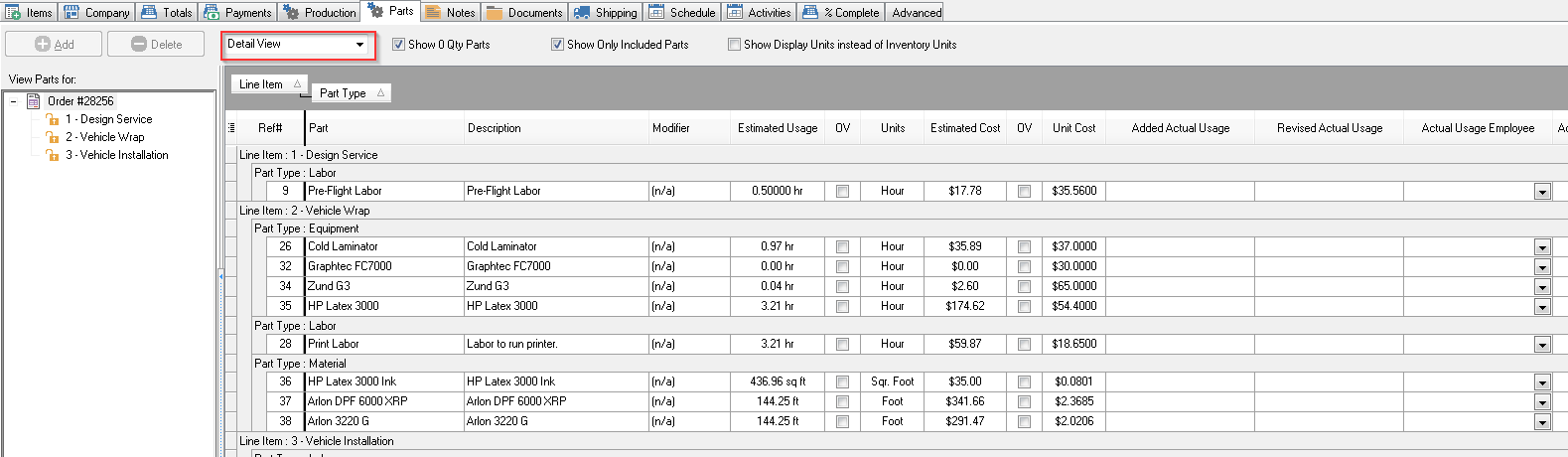
The options for the drop-down include:
- Detail View
- Order Summary View
- Top-Level Item Summary
- Line Item Summary
Each of these views is described below. With certain views, many of the columns are no longer relevant. These columns have been hidden on the screen, but not removed from column chooser (or the saved columns). The particular handling of many of the columns will depend upon the particular option.
Detail View
The detail view is the current Parts Grid, in its current form.
Order Summary View
The order summary view consolidates every line item into one parts list. When a part exists more than one time in the order, an aggregate part will be created for each. In those cases, the aggregate parts will be displayed instead of the individual parts.
The columns in the parts grid adjust according to these rules:
- Ref #: Use for Aggregate Parts
- Line Item #: Displayed if the same for all.
- Part Type: Displayed.
- Part: Displayed
- Product: Displayed if the same for all.
- Modifier: Displayed if the same for all.
- Estimated Cost: Sum(estimated cost) for all aggregated parts.
- Estimated Usage: Sum(estimated usage) for all aggregated parts.
- Units: Displayed
- Current Actual Usage: Sum(actual usage) for all aggregated parts.
- Current Actual Cost: Sum(actual cost) for all aggregated parts.
- Added Actual Usage: No change
- Added Revised Usage: No change
- Actual Usage Employee: No change
Top-Level Item Summary
The Top-Level Item Summary View consolidates line items and their children into one parts list. When a part exists more than one time in the line item or in its children, an aggregate part will be created for each. In those cases, the aggregate parts will be displayed instead of the individual parts. The columns in the parts grid adjust according to these rules:
- Ref #: Use for Aggregate Parts
- Line Item #: Displayed if the same for all.
- Part Type: Displayed.
- Part: Displayed
- Product: Displayed if the same for all.
- Modifier: Displayed if the same for all.
- Estimated Cost: Sum(estimated cost) for all aggregated parts.
- Estimated Usage: Sum(estimated usage) for all aggregated parts.
- Units: Displayed
- Current Actual Usage: Sum(actual usage) for all aggregated parts.
- Current Actual Cost: Sum(actual cost) for all aggregated parts.
- Added Actual Usage: No change
- Added Revised Usage: No change
- Actual Usage Employee: No change
Line Item Summary
The Item Summary View consolidates parts within a line item. When a part exists more than one time in the line item, an aggregate part will be created for each. In those cases, the aggregate parts will be displayed instead of the individual parts.
The columns in the parts grid adjust according to these rules:
- Ref #: Use for Aggregate Parts
- Line Item #: Displayed.
- Part Type: Displayed.
- Part: Displayed
- Product: Displayed.
- Modifier: Displayed if the same for all.
- Estimated Cost: Sum(estimated cost) for all aggregated parts.
- Estimated Usage: Sum(estimated usage) for all aggregated parts.
- Units: Displayed
- Current Actual Usage: Sum(actual usage) for all aggregated parts.
- Current Actual Cost: Sum(actual cost) for all aggregated parts.
- Added Actual Usage: No change
- Added Revised Usage: No change
- Actual Usage Employee: No change
Grid Options Notes:
- Any time the view option changes, the options being displayed are automatically saved (as a user option) and restored when the user re-opens the screen.
- When grouping parts, parts assigned to different production warehouses can not be grouped together. This means the grouping rules also take into account the production warehouse.
Usage Cases
- User is in Summary view has specified a qty to be posted to actual but has not yet posted it. The user then switches to the Detail view. The usage will be proportionally distributed across all instances of the part.
- User is in Detail view has specified a qty and different employee on multiple instances of the same part. The user doesn’t post, instead switches to Summary view. A sum of all the usage is taken and applied to the single instance of the part in the summary view. When posted the usage is proportionally distributed to all instances of the parts regardless if the original detail posting was not proportional.
- User is in Detail view has specified a different employee on each instance of the part that they intend to post usage on, however they switch to summary view. The user must re-select who the person is that the usage will be posted on. Since you’re going to a summary view you have to specify what employee will get the usage. If all instances in the detail view are for the same employee Control will default the usage to go to that employee unless the user posting the usage overrides the employee selector. Restrictions of the Parts Grid The summary views have introduced a number of questions when dealing with line item parts grid. The following have been implemented:
- Remove the ability to add usage on the line item parts grid. This includes the grid on the order parts tab when filtering by a specific item.
- In a line item parts grid, do not allow a view to be selected that is beyond the scope of the item. So, the order summary view is not allow for line items. Top level item view is not allowed for child items. These changes are intended to remove any confusion regarding which parts will have added usage applied to them when in a summary view. Posting Usage on Summary Parts Grids Actual part usage can be applied to aggregate parts in the same manner as individual parts. In this case, the usage must be distributed across all aggregate parts according to the logic below. Usage cards for each aggregate part are then created and posted.
Logic for Applying Part Usage to Aggregated Parts Terms
- Estimated Quantity The Estimated Quantity that is set in the TransPart.
- Actual Usage The quantity that is used of the TransPart.
- Used Estimated The calculated portion of the Estimated Quantity that has been used.
- Unused Estimated The calculated portion of the Estimated Quantity that has not been used. (ie Quantity Reserved)
- Used Beyond Estimated The calculated amount of actual usage that is over the Estimated Quantity Examples of these terms in various scenarios
|Estimated Quantity |Actual Usage |Used Estimated |Unused Estimated |Used Beyond Estimated |
| 10 | 0 | 0 | 10 | 0 |
| 10 | 5 | 5 | 5 | 0 |
| 10 | 10 | 10 | 0 | 0 |
| 10 | 15 | 10 | 0 | 5 |
| 10 | -5 | 0 | 10 | -5 |
| 0 | 5 | 0 | 0 | 5 |
| 0 | -5 | 0 | 0 | -5 |
| -10 | 0 | 0 | -10 | 0 |
| -10 | -5 | -5 | -5 | 0 |
| -10 | -10 | -10 | 0 | 0 |
| -10 | -15 | -10 | 0 | -5 |
| -10 | 5 | 0 | -10 | 5 |
Note:
- Used Estimated + Unused Estimated will always equal Estimated Quantity
- Used Estimated + Used Beyond Estimated will always equal Actual Usage
- The only time Unused Estimated and Used Beyond Estimated will both be non-zero is when Estimated Quantity greater than zero and Actual Usage is less than zero or vice-versa.
Sequence for distributing usage
When usage is added, Control will go through each of these steps, applying as much usage in each step. Once the new usage remaining gets to zero, the process is complete and it does not continue to the next step.
Added usage (when the Added Usage is greater than zero)
- If any parts have a Used Beyond Estimate amount that is less than zero, apply the usage to them to attempt to raise the amount to zero.
- If any parts have a Used Estimates amount that is less than zero, apply the usage to them to attempt to raise the amount to zero.
- If any parts have an Unused Estimated amount that is greater than zero, apply the usage to them to attempt to lower the amount to zero.
- Attempt to rebalance actual usage of parts that have an Estimated Quantity that is greater than zero.
- Distribute proportionately among parts that have an Estimated Quantity that is greater than zero. If every part has an Estimated Quantity of zero, then distribute evenly among all the parts. If every part has an Estimated Quantity that is less than or equal to zero, then distribute proportionately among parts with an Estimated Quantity that is less than zero.
Removing usage (when then Added Usage is less than zero)
- If any parts have a Used Beyond Estimate amount that is greater than zero, apply the usage to them to attempt to lower the amount to zero.
- If any parts have a Used Estimates amount that is greater than zero, apply the usage to them to attempt to lower the amount to zero.
- If any parts have an Unused Estimated amount that is less than zero, apply the usage to them to attempt to raise the amount to zero.
- Attempt to rebalance actual usage of parts that have an Estimated Quantity that is less than zero.
- Distribute proportionately among parts that have an Estimated Quantity that is less than zero. If every part has an Estimated Quantity of zero, then distribute evenly among all the parts. If every part has an Estimated Quantity that is greater than or equal to zero, then distribute proportionately among parts with an Estimated Quantity that is greater than zero.
Note:
- If there are parts with an Estimated Quantity of zero, but not all of the parts have an Estimated Quantity of zero, then those parts with never get usage added to them with this method.
- Though, any actual usage that is applied to parts with zero Estimated Quantity can be backed out.
Details of the steps
Steps 1-3: If the quantity added is greater than the total amount it is being applied to, then the full amount will be applied and the remainder will be carried over to the next step. Otherwise, the quantity added will be distributed proportionately based on the amounts being applied to.
Example:
You have 3 parts with estimated quantities of 10, 20, and 30, and zero actual quantity for all three.
- If you were to add an actual quantity of 70, then 10, 20, and 30 would be added to the actual quantities, and a quantity of 10 would be carried on to the next step.
- If you were to add an actual quantity of 30, then 5, 10, and 15 would be added to the actual quantities, and the distribution of the added actual quantity would be complete.
Step 4: In this step, the current actual usage plus the newly added usage from steps 1-3 for each part is examined to compare the actual distribution with the distribution of the estimated quantity. From there Control will attempt to use the remaining added quantity to adjust the actual usage so the distribution matches the estimated distribution.
Note:
- The existing actual usage will not be reduced.
Step 5: At this point, any remaining added usage will be distributed based on the distribution of the estimated quantities. If all of the estimated quantities are zero, then the added amount will be distributed evenly.