Table of Contents
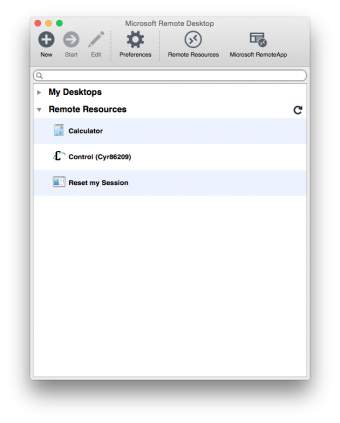
Microsoft Remote Desktop
To access Control Cloud on a Mac, you will need to obtain Microsoft Remote Desktop from the App Store. This requires OS X 10.7 or later and a 64-bit processor.
- Open the App Store.
- In the search box, type Microsoft Remote Desktop.
- Install the free app.

Verify you have the correct version of the app
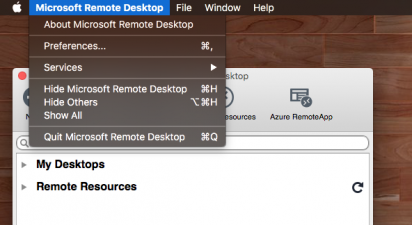
Open the Microsoft Remote Desktop app. Then click the application's menu next to the Apple menu and select About Microsoft Remote Desktop. Your version should be at least 8.0.26.

Connect to Your Control Cloud Account
- Open Microsoft Remote Desktop from your Applications folder.
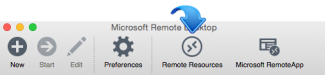
- Click the Remote Resources button
- In the URL box, type cloud.cyrious.com , cloud2.cyriousapp.com, or whatever link was provided to you by Cyrious.
- In the User name and Password fields, enter the login information you received in your welcome email.
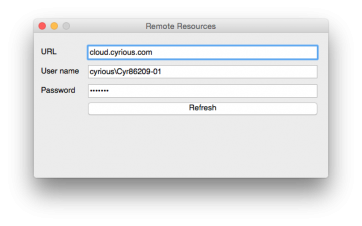
- Click the Refresh button and close the Remote Resources window.
- Now you should see Control. Double-click to log in.