Table of Contents
Summary
In Control version 5.75 and older, all credit card data was encrypted and stored in the Control database. In order to provide a more secure way to store credit cards, Cyrious is moving away from the encryption method and will be using a tokenization process instead. If the term “tokenization” sounds familiar, it's probably because it's used in applications such as: Apple Pay, Google Wallet, Paypal, and Amazon. Click here for a short, very informative article written for the computer novice that details the differences between encryption and tokenization.
With the release of Control 6.0 in Jan 2017, all credit card numbers must be removed from your Control database. Once updated to Control 6.0, all customers that plan to use Control's internal credit card module and process credit cards through Elavon must migrate their existing credit cards to FreedomPay's vault. All customers that plan to process credit cards outside of Control need to delete their existing credit card information. By removing the credit card information that's currently in your Control database, you are reducing your PCI Compliance requirements.
Caution
cc_warning.png_width31 The steps detailed below will permanently delete credit card data from your database. Be sure to backup your database before proceeding! Also, credit cards will only migrate to FreedomPay's vault if you've completed the registration process with FreedomPay and you're Store ID and Terminal ID have been entered in Control.
What's Next?
Find which of the two categories you fall within to determine what your next steps are.
- If you plan to run credit cards in Control using Elavon as your processor, you will need to migrate your existing credit cards to FreedomPay's vault.
What Happens during Migration?
There are a few key things to note about the migration process.
### Credit cards can only be migrated if a valid Store ID and Terminal ID have been entered in Setup > Accounting Setup > Credit Card Options.
### FreedomPay will only allow valid cards to be added to their vault. This means:
* Cards with expired expiration dates will not move to the vault
* Cards with invalid credit card numbers will not move to the vault
* Only the first 26 characters (including spaces) of the Name on Card field will be vaulted
* The Name on Card field will be stripped of any special characters before being vaulted (e.g.: Sue Smith-Turner will become Sue SmithTurner)
* During the migration process, FreedomPay will verify and correct, if necessary, the card type (Visa, MasterCard, AmEx, etc…) based on the card number
### After the migration, Control will delete ALL pre-6.0 credit card related information from your Control database. This means:
* You will no longer be able to view credit card numbers within Control
* If a card does not transfer to the vault due to it failing FreedomPay's validity test, that card will need to be manually keyed into Control 6.0
Steps to Migrate Credit Cards
Migrating credit cards in Control 6.0 takes just a few minutes to complete. The only users that need to migrate cards are those that have already created an account with Ed Moore from Capital Q and plan to process credit cards through Elavon.
#### Open Control and select Setup > Accounting Setup

#### On the left hand side, select the Credit Card Options

#### Without clicking the Edit button, click the Migrate Credit Cards button
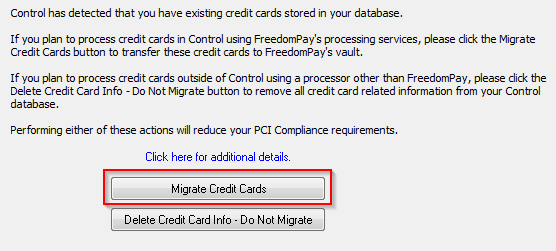
###### You'll see the below message as Control is migrating credit cards. This process should take about 1 second to validate and migrate each saved credit card.
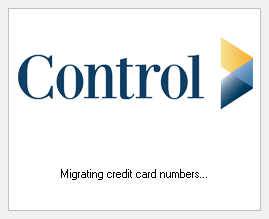
###### You'll be notified once the migration is complete.

If you would like to see a list of credit cards that FreedomPay did not migrate, follow these steps.
#### Click Reports > Customers & Receivables > Payments (Receipts) from Customers > Credit Card Migration Failure
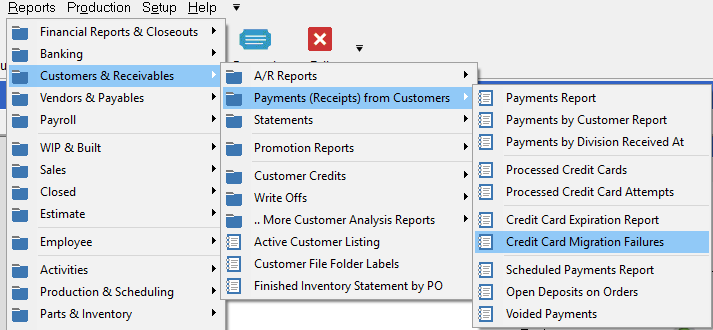
#### Click the Preview button on the Report Criteria pop-up and the report will display.
2. If you DO NOT plan to process credit cards in Control, you will need to delete the existing credit cards from your Control database.
What Happens during Deletion?
### Control will delete ALL pre-6.0 credit card related information from your Control database. This means:
* You will no longer be able to view or modify existing credit card numbers within Control
* You will no longer be able to add new credit card numbers within Control
Steps to Delete Credit Cards
Deleting credit cards in Control 6.0 is very easy to complete. Remember, you'll only want to complete this step if you aren't going to process credit cards in Control.
#### Open Control and select Setup > Accounting Setup
#### On the left hand side, select the Credit Card Options
#### Without clicking the Edit button, click the Delete Credit Card Info - Do Not Migrate button

##### This process should be able to delete about 5 credit cards per second.
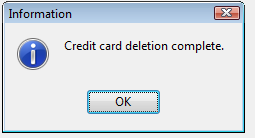
##### You'll be notified once the deletion is complete.
Next Step: Proceed to the how_to_save_update_and_delete_credit_card_and_ach_information wiki
Source
Contributor: Cyrious Software
Date: 10/13/2016
Version: Control 06.00
See Also
- Backlinks include_pagepage_componentbacklinks