{$page}
Introduction
This page is to assist users getting setup using the RemoteApp desktop connections for Cyrious Cloud when working in Windows 7.
Steps for Setup
- Press your Windows key to bring up your Start Menu, or just click on the icon in the lower left corner (normal location)

- Type remoteapp and the Start menu will show you the available options. Click on “Set up a new connection with RemoteApp and Desktop Connections”, as shown in the picture below

- Type in the the following information:
  * **A2Z Cloud Users**: https://cloud.cyrious.com/RDWeb/Feed/webfeed.aspx
  * **FastSigns Users**: https://fastsigns.cyriousapp.com/RDWeb/Feed/webfeed.aspx

* Click **Next** to proceed
- You will then receive a screen letting you know you are ready to set up the connection. Click Next to proceed.

- Next, Windows will prompt you to enter your credentials that are used to connect to the server. These are the same credentials that you currently use when you access apps via the web page.
  * Fill out the username, including the domain - **Example**: cyrious\Cyr86753-01
  * Fill in your password
  * Click **OK** to proceed

- As long as your credentials were correct, you should now see a screen letting you know that everything has been set up successfully. Click Finish to proceed.
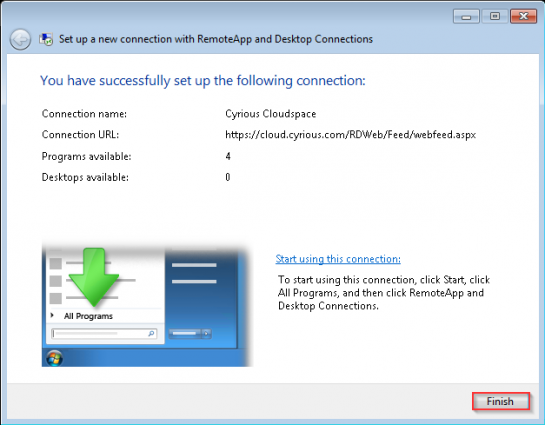
- These programs will now be available to you from your Start Menu.
- Press your Windows key, or click on the Start Menu > All Programs > RemoteApp and Desktop Connections > Cyrious Cloudspace.

Additional Setup
To copy the shortcuts to your desktop: Right click on the Cyrious Cloudspace folder in your Start Menu > Click “Open” > Copy any shortcuts you desire from that folder to your desktop
Steps to Connect
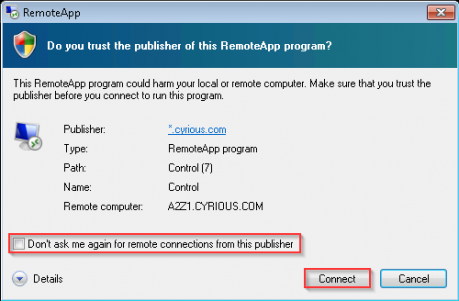
- When you go to use the link you may receive a prompt asking if you trust the publisher of the RemoteApp program.
  * Click the checkbox for "//Don't ask me again for remote connections from this publisher//"
  * Click **Connect** to proceed
- Windows Security will then ask you to enter the credentials needed to connect to the server. These are the same credentials that you used in Step 5.
  * Fill out the username, including the domain - **Example**: cyrious\Cyr86753-01
  * Fill in your password
  * Click **OK** to proceed

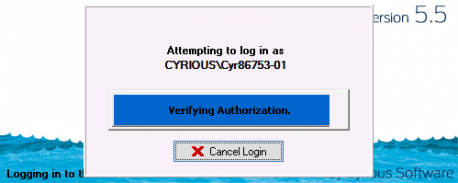
- Control will then begin its loading process
See Also
- Backlinks include_pagepage_componentbacklinks
You could leave a comment if you were logged in.