=Description=
Most major credit card companies have begun releasing Credit/Debit cards with an embedded “chip”. This chip cannot be easily replicated and provides much greater security than the magnetic stripe used on Cards for the past decades. This chip technology is referred to as EMV.
EMV Credit Card Processing is a manual processing that requires the user to process Chip Cards on a separate machine that is not linked into Control (use a chip enable terminal that has been activated by the merchant).
=Approach=
EMV processing requires new “smart” terminals to processes the chip cards. Those smart terminals currently do not connect to Control, and so Control does not know about the payments run through the EMV terminal. These payments will have to be re-entered in Control to be applied to the order. Since they won't be processed online by Control, you'll need to set up separate payment methods and payment accounts to track this information.
This document described the process of setting up separate payment methods and payment accounts for transactions run through the EMV terminal.
=Setting Up EMV (Chip Card) Processing=
This section summarizes how to setup EMV credit card processing in Control:
To separate EMV credit processing from Online Credit Card processing in Control, we first must setup separate
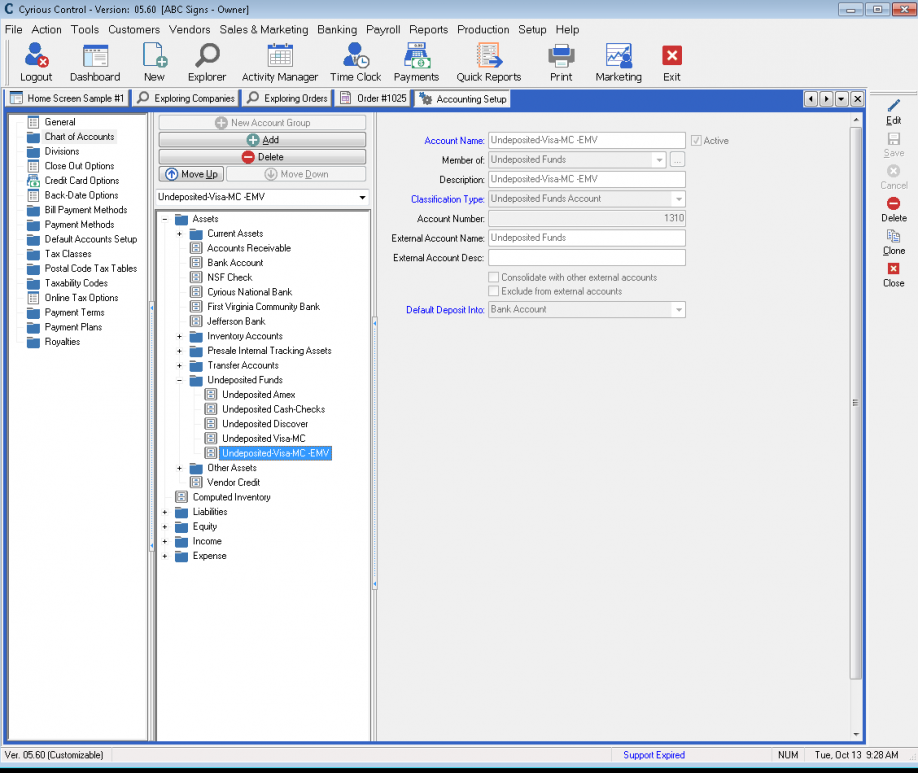
Undeposited Fund Accounts for each EMV credit card type in control. Create an undeposited funds account for
each EMV credit card type (Visa-MC, AMEX, etc) as follows:
- Click on Setup | Accounting Setup.
- Choose the Chart of Accounts in the left menu.
- Select and then expand the asset group in your chart of accounts and click on the Undeposited Funds Group (current undeposited fund accounts will appear).
- With the undeposited funds group selected, you can add new EMV Undeposited Funds Account. Click on the Add button above the chart of accounts (this will add a new GL account).
- Fill in the following (minimum) information:
- Account Name - Enter “Undeposited” followed by credit card name, then EMV (e.g. “Undeposited - VISA- EMV)
- Member of= Undeposited Funds
- Classification Type - Undeposited Funds Account
- External Account Name – To be used for customers exporting to a 3rd party accounting software only. If exporting out to a 3rd party accounting software, the new Undeposited Funds for EMV processing must be “Mapped” to a corresponding account in the 3rd party accounting software (entered corresponding account name in External Account section)
- Default Deposit into - Bank Account
- Click on the “save” button
- New account will automatically appear in the chart of account under the Undeposited Funds Group.
- Repeat these steps for each EMV credit card type (AMEX, Discover, etc.)
Setting Up EMV Payment Method
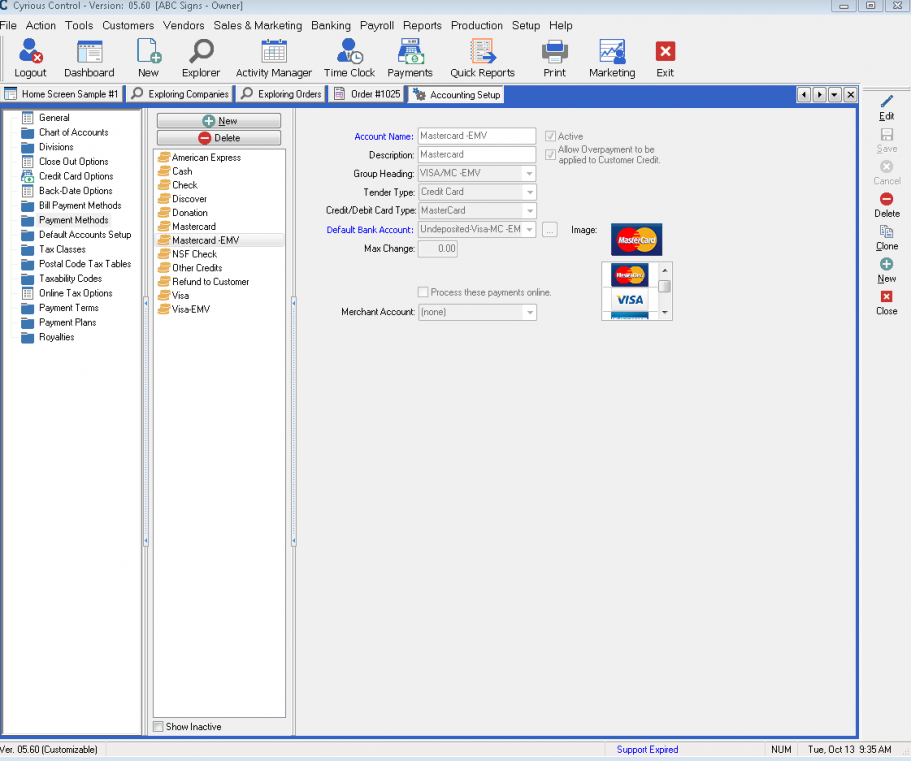
Once the EMV Undeposited Funds account is established, you will need to set up a”Payment Method” so you can process payments from the EMV Chip Card. Note: These payments methods “should not” be setup for online credit card processing (located in credit card processing in the accounting setup screen).
While still in Accounting Setup (Setup | Accounting Setup):
- Click on Payment Methods.
- Click New on the Action Toolbar (on the right) to create a new payment method.
- Enter the information for the new payment method:
- Account Name- Enter the name, usually the same as the credit card name (e.g. MasterCard-EMV).
- Description – Description of credit card (e.g. MasterCard)
- Group Heading-description to distinguish payment type= EMV Credit Card
- Tender Type – Choose ”Credit Card”
- Credit/Debit Card Type – Type of Card (e.g. MasterCard)
- Default Bank Account – Undeposited Account Name (e.g. Undeposited –VISA/MC EMV)
- Process these payments online = leave box unchecked
- Save the payment method
- Repeat these steps for each EMV Credit Card Type (e.g. AMEX, Discover, etc)
Processing EMV Chip Card Payments
EMV (Chip) Cards must to be swipe and processed through a separate credit card machine (an
EMV- enabled device not tied to Control). Payments accepted via the EMV Cards are processed in Control via the normal Payment Processing Steps, see link below:
http://control.cyriouswiki.com/Users+Manual+Ch+08-Payment+and+Accounting
Setting up Control for Online Credit Card Process see link below:
http://control.cyriouswiki.com/How-To+Setup+Control+for+Credit+Card+Processing
=Source=
Contributor: Pat Allen, Cyrious Software
Date: 10/13/2015
See Also
- Backlinks: include_componentbacklinks