Overview
The multi-order payment interface is a bit different from the Quick Payment interface although these rules still apply:
- You'll need to enter an Amount to Pay OR select an invoice before choosing a Payment Type.
- You won't see separate payment options for each credit card type (Visa, MC, AmEx, etc…) if you are processing credit cards through Control. FreedomPay will determine the card type based on the card number and assign it the correct type when processed.
- All credit cards saved for the specified company will display as a separate Payment Type. This makes viewing which credit cards are available for the company much easier.
Let's look at some specific examples.
Posting One Payment for Multiple Orders
Company :
There are 2 ways to populate this field:
- Start typing your company name in the field and a drop-down list will populate with active Clients whose name starts with the letters typed. Then select the appropriate company name.

- Use the Company Explorer (magnifying glass) to search for your company name
Order #:
There are 2 ways to populate this field:
- Enter your order number in the field then click Tab
- Use the Order Explorer (magnifying glass) to search for your order number
*
Amount to Pay :
- This field will default to $0 when the multi-pay interface is first opened.
- This field will automatically sum the Amounts of the orders that are checked.
- If this field is left blank and no order is checked, no Payment Type can be selected (gray = inactive). When an Amount to Pay has been entered OR an order is selected, you'll notice the Payment Types are blue and active.
- If the amount entered in this field is higher than the customer's available credit, the Customer Credit Payment Type be gray.
Amount to Orders:
- Sum of the Amount column for the orders selected
- Not editable
Unapplied Amount:
- Amount to Pay minus the Amount to Orders
- Not editable
- Only displayed when this number is greater than $0.00
Apply Overpayment to Customer Credit :
- If you enter an Amount to Pay that's greater than the sum of the Balance Due column for the orders selected, the excess will need to be applied as a Customer Credit.
Total Order Balances:
- Sum of the Balance Due column for the orders selected
- Not editable
Remaining Order Balances:
- Total Order Balances minus the Amount to Pay
- Not editable
Effective Date:
- (Will only show when backdating payments is enabled) Enter the date/time you want the payment to be recording in the GL.
Received At:-
- (Will only show when Divisions are enabled) Enter the Division the payment was received at
If you are Processing Credit Cards in Control
This is what the Multi-Pay interface will look like for a user that is processing payments in Control. 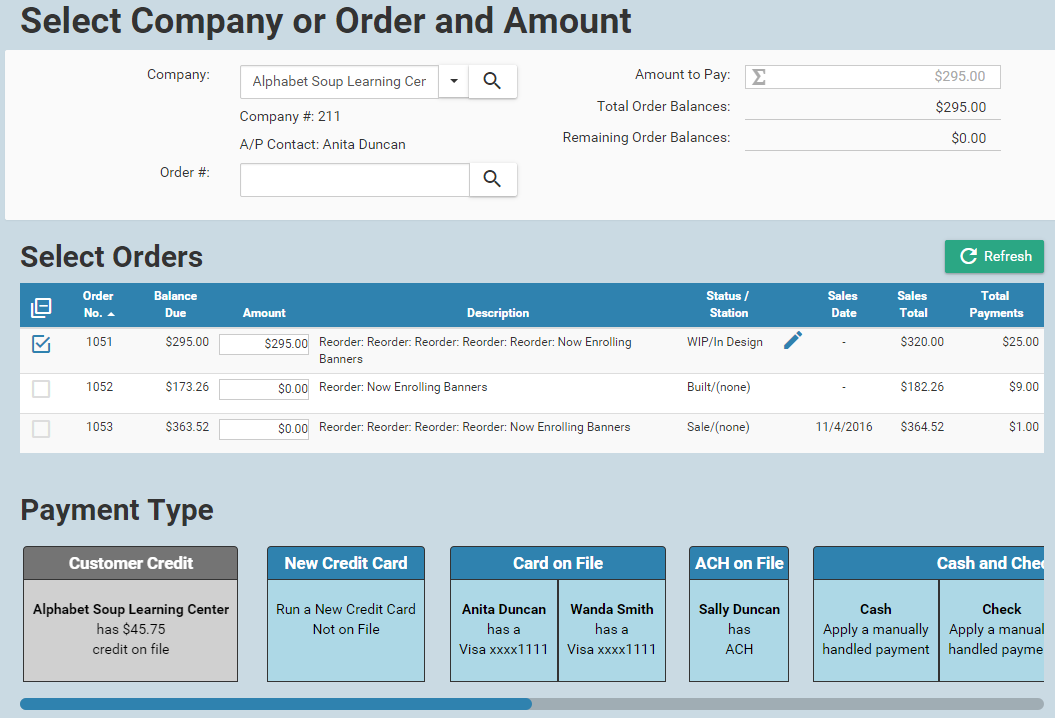 [image:MP 2.PNG width=“758”]]
New Credit Card : Use this option if you need to process a credit card that is not in the Card on File category. After the payment is processed, you will have the ability to save this card's details to a contact record.
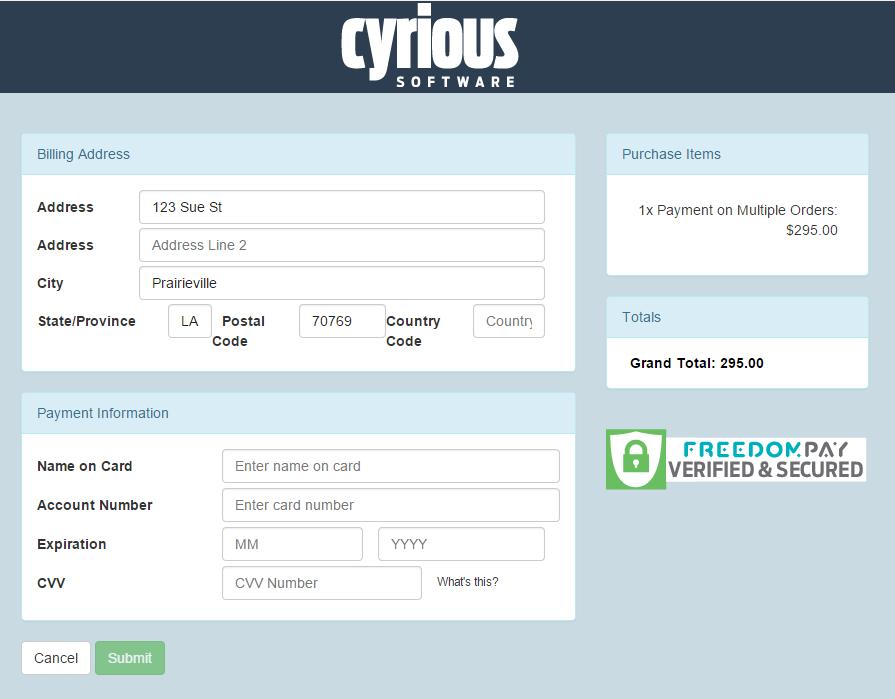
Once the New Credit Card option is selected, Control will connect to FreedomPay. This may take a couple seconds to complete.  understanding_freedompays_hosted_payment_page_hpp will open. The Billing Address will default from the company record. Update it as necessary. You'll want to fill in the credit card details for the new card. Click Submit when you're ready to process the card.
  Because this is a New Credit Card, the below message box will appear. You can enter notes and check the Keep On File For option if you'll like to save this credit card to a specific contact's record. Select the contact's name from the drop down and click Save. Remember that a contact can only have one payment method linked to it so the Keep on File option will overwrite existing payment methods.
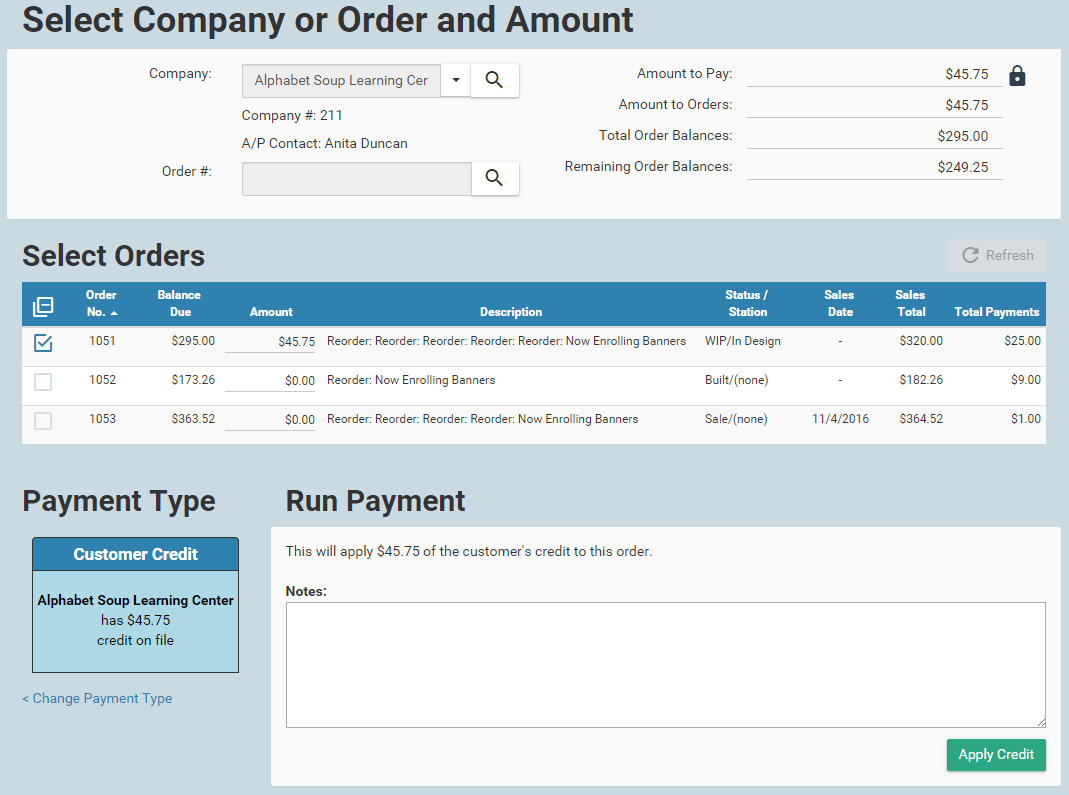

 All other Tender Types__ (ACH, Cash and Check, Other, etc…) will appear if those payment types are activated.

If you are NOT Processing Credit Cards in Control
The multi-pay interface looks a bit different for customers that aren't processing credit cards in Control . The differences are:
- The New Credit Card option is not visible
- The Card on File option is not visible
- The individual active credit card payment types are visible
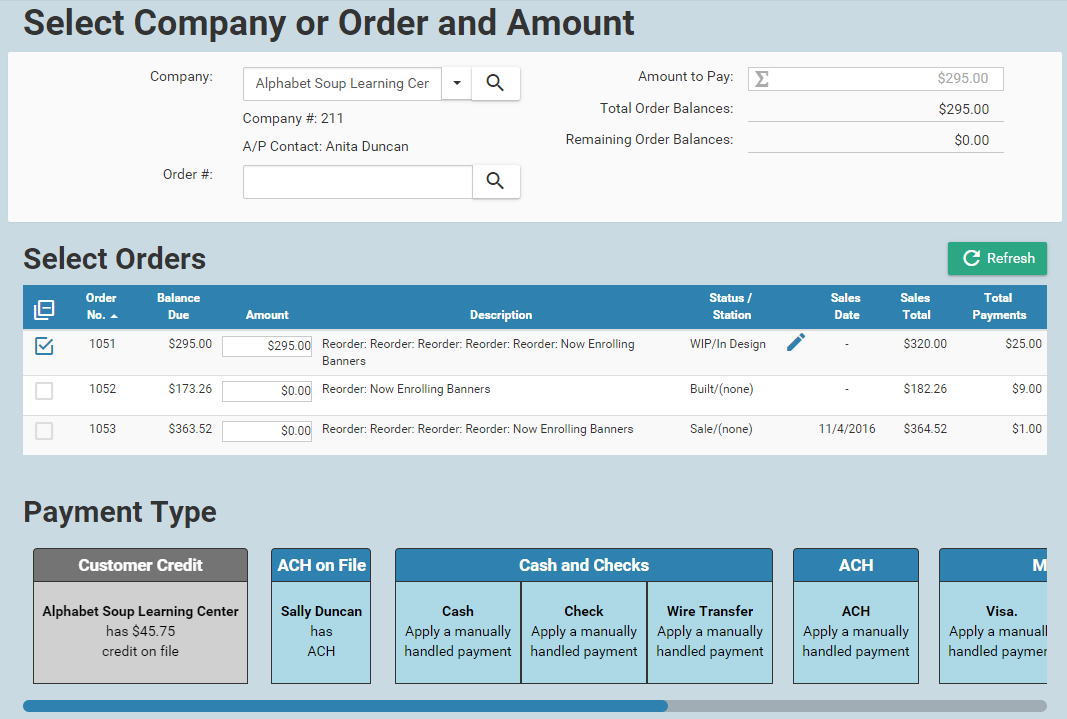
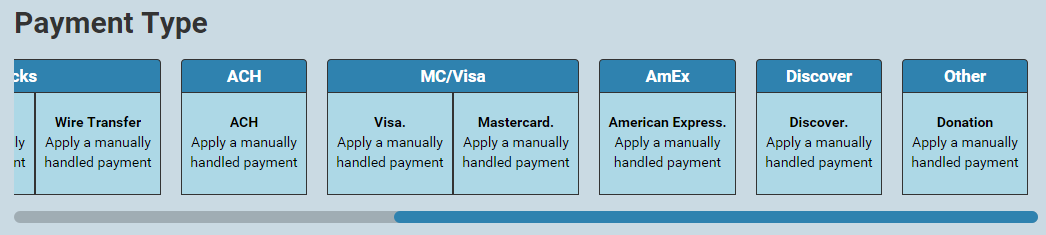
Other than the differences indicated above, all Payment Types will look very similar to this when you go to post a payment:

Backdate
When the ability to backdate a payment is turned on, the Effective Date option will appear. You'll see the standard options that allow you to use the current date/time, change the date/time, and use the backdated date/time until you log out.

Divisions
The Multi-Pay interface changes slightly when multiple divisions are active in Control. You'll be able to change which division a payment was received at as well as see which division an order is assigned to.

Invoice Number
Next Step: Proceed to the how_to_void_and_refund wiki
Source
Contributor: Cyrious Software
Date: 11/22/2016
Version: Control 06.00